What Is VPN Split Tunneling? How It Works and When to Use It
10 min read

Most VPN advice treats "on" and "off" as the only two settings that exist. Split tunneling is the third option nobody mentions until something breaks. Your smart TV can't find your printer, or your bank app locks you out for looking like you're logging in from another country.
The all-or-nothing default causes real problems
A standard VPN connection routes every byte your device sends through the encrypted tunnel, no exceptions. That's the right behavior most of the time, but it has a side effect people don't expect: any local network device, a printer, a smart speaker, a NAS drive, becomes unreachable, because the VPN routes traffic through a remote server instead of across your own Wi-Fi. Banking and payment apps also frequently flag VPN traffic as suspicious and lock the account or demand extra verification, precisely because the connection now looks like it's coming from somewhere else.
What split tunneling actually changes
Instead of forcing every app through the tunnel, split tunneling lets you pick which apps or which traffic use the VPN and which bypass it entirely, using your normal internet connection. Your streaming app can stay tunneled for privacy while your smart home app talks directly to your local network without the VPN getting in the way. Both running simultaneously, no toggling required.
Where this matters specifically for streaming
If you're running a VPN on your router or a device that also handles other household traffic, split tunneling means you don't have to choose between "VPN protects everything, but my local devices break" and "nothing is protected." A streaming box can stay tunneled through the VPN while your kid's tablet, printer, or smart TV on the same network continues talking to local devices normally.
The security tradeoff, stated plainly
Whatever you exclude from the tunnel is exactly as exposed as it would be with no VPN at all — split tunneling doesn't add a lesser form of protection to excluded traffic, it removes protection entirely for that specific slice. That's the deliberate tradeoff, not a compromise setting. Exclude only what actually needs to bypass the VPN, a local printer, a banking app — rather than excluding things out of convenience.
Setting it up
Availability varies by provider and even by platform within the same provider. A desktop app might offer full split tunneling while the same provider's Fire TV or Android TV app doesn't expose the option at all. Check your specific VPN app's settings menu rather than assuming the feature exists just because the provider markets it generally; router-level VPN setups typically handle this differently, through IP-based routing rules rather than a simple app toggle.
The two modes, and why the difference matters
Split tunneling is not one feature. Providers implement it in two opposite ways, and picking the wrong one leaves traffic exposed that you assumed was protected.
Standard (exclusive) split tunneling
Everything goes through the VPN by default, and you name the specific apps that should bypass it. This is the safer default: anything you forget to configure stays protected. Use it when only a handful of things need to skip the tunnel: a banking app, a printer utility.
Inverse split tunneling
Nothing goes through the VPN by default, and you name the specific apps that should use it. This is the riskier arrangement, because anything you forget is unprotected. It makes sense when only one or two apps genuinely need the tunnel and you'd rather not route the rest of a busy household through a remote server.
The distinction matters most when you install a new app. Under standard mode the new app is protected automatically; under inverse mode it is not, and nothing warns you.
App-based versus IP and URL-based rules
Most consumer VPN apps split traffic by application. You tick which programs bypass the tunnel. Some also allow rules by destination IP address or domain, which behaves quite differently.
App-based rules break down when an app doesn't handle its own networking. A browser is a single application, so excluding it excludes every site it visits, not just the one you meant. Streaming apps that offload playback to a system media service can also leak past an app-based rule, because the traffic technically originates from a different process.
Destination-based rules avoid that problem but require knowing which addresses a service actually uses, and large streaming platforms serve content from CDN ranges that change frequently. That's why a rule written around one domain often fails to catch the video traffic itself.
What split tunneling does not protect you from
A couple of failure modes catch people out even with everything configured correctly.
DNS leaks. Your device may still send DNS lookups outside the tunnel, revealing which sites you visit even when the traffic itself is encrypted. Some VPN apps route DNS through the tunnel regardless of split-tunnel rules; others don't. Worth testing with a DNS leak checker rather than assuming, since the lookups alone reveal your browsing even when the traffic itself never leaves the tunnel.
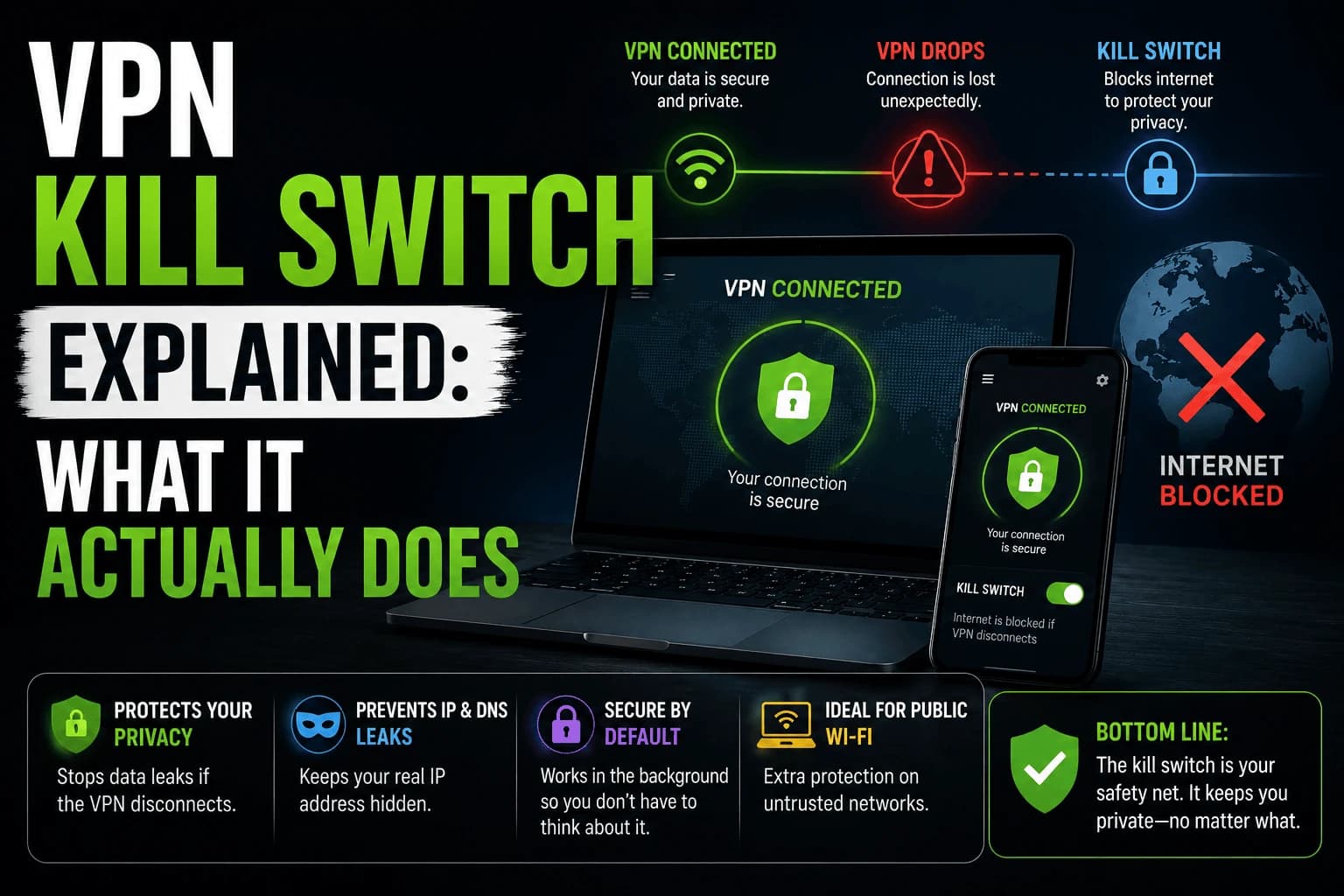
The kill switch interaction. A kill switch cuts your connection if the VPN drops, but on most implementations it only cuts tunneled traffic. Excluded apps keep working normally, which is correct behaviour but surprises people who assume the kill switch protects everything. Our guide to how a kill switch actually works covers what they do and don't cover.
Practical setups worth copying
Configurations that solve most real problems:
- Streaming device plus local network. Tunnel the streaming app, exclude everything that needs to reach local hardware: printers, NAS drives, smart home hubs. Fixes the most common complaint without giving up much.
- Banking and payments excluded. Financial apps frequently treat VPN connections as suspicious and trigger extra verification or lock the account. Excluding them avoids the friction entirely and costs little, since those apps already use their own encryption.
- Work traffic separated. If you run a corporate VPN alongside a personal one, split tunneling keeps them from fighting over the routing table: a common cause of both connections behaving unpredictably.
Does it affect speed?
Excluded apps run at your normal connection speed because they skip the VPN server entirely, which is often the reason people enable it. Tunneled apps see no change — routing some traffic outside the tunnel doesn't make the remaining tunnel faster or slower.
The one real gain is on constrained hardware. Streaming devices have limited processing power, and encryption is work. Excluding background traffic can free up headroom on a device that struggles with a full-tunnel VPN, which matters more on a budget stick than on a desktop.
Related reading
- how kill switches work: the feature split tunneling interacts with most
- router-level VPN, where split tunneling works differently
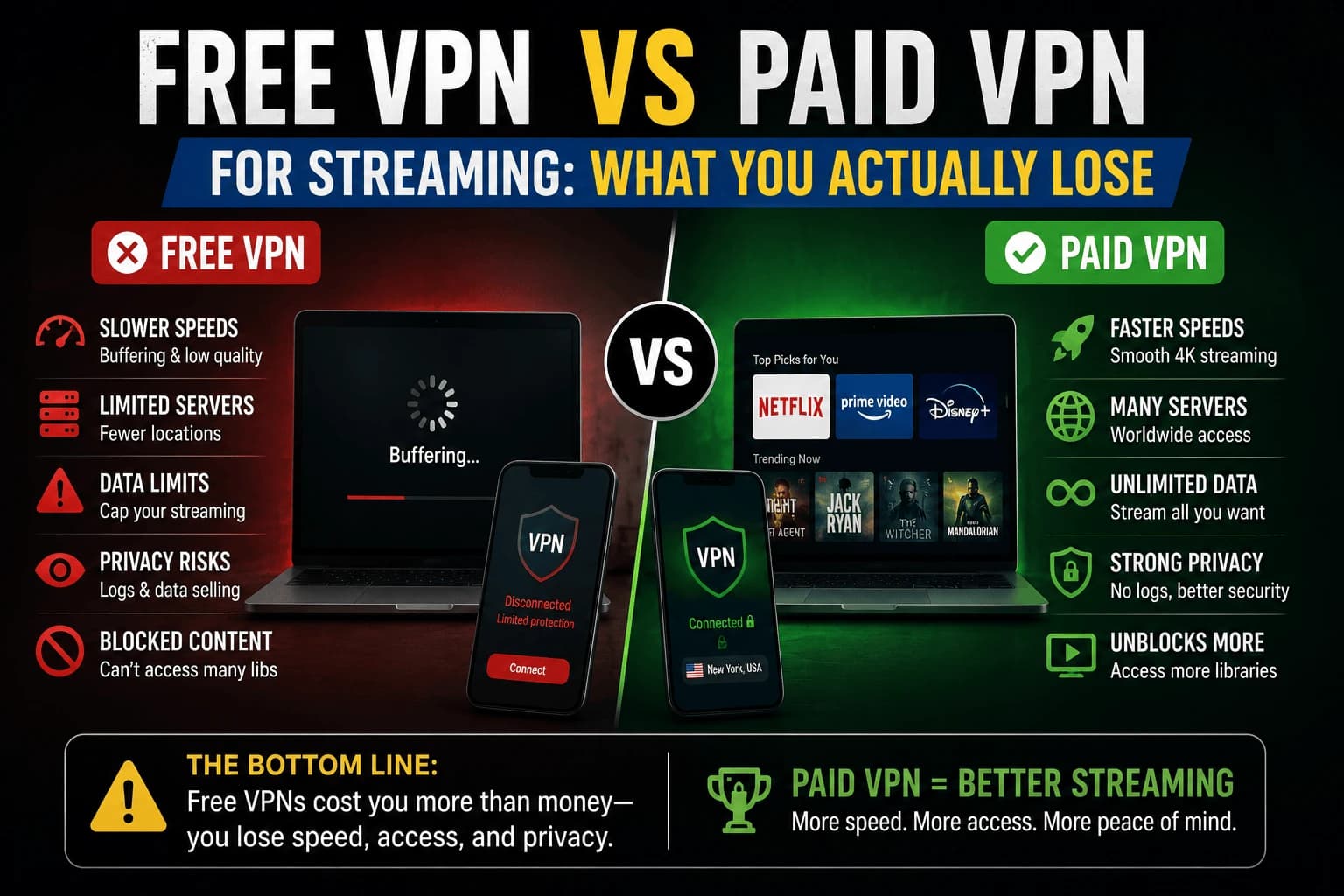
- Free vs paid VPNs: split tunneling is usually a paid-tier feature
Frequently Asked Questions
Does split tunneling make my VPN less secure?
Only for the specific apps or traffic you've excluded from the tunnel — everything else stays fully protected. The apps you exclude are exactly as exposed as if you weren't running a VPN at all, which is the intended tradeoff.
Do all VPN apps support split tunneling?
No, it's common among established paid providers but far from universal, and support sometimes varies by platform — a provider's desktop app may support it while a TV app doesn't.
Why would I want some traffic to skip the VPN?
Common reasons: accessing local network devices (printers, smart home gear) that a full-tunnel VPN would cut off, using banking apps that flag VPN traffic as suspicious, or keeping a streaming device's regional content working normally while other traffic stays private.
Does split tunneling slow down the apps still using the VPN?
No, the apps still tunneled perform exactly as they would under a full VPN connection — excluding some traffic doesn't add overhead to what remains encrypted.
What is inverse split tunneling?
Inverse split tunneling reverses the default: nothing uses the VPN unless you specifically add it, rather than everything using the VPN unless you exclude it. It is riskier, because any app you forget to add is left unprotected and nothing warns you — including newly installed apps.
What are the risks of split tunneling?
Excluded traffic has no VPN protection at all. Two less obvious risks: DNS lookups may still travel outside the tunnel and reveal which sites you visit, and a kill switch typically only cuts tunneled traffic, so excluded apps keep working when the VPN drops.
Does split tunneling work in a browser?
Only partially. App-based rules treat a browser as one application, so excluding it excludes every site it visits rather than the specific one you intended. Providers that support URL or IP-based rules handle this better, though large streaming services use changing CDN ranges that domain rules often miss.
Is split tunneling available on Fire TV and Android TV?
Less often than on desktop. A provider may offer full split tunneling in its Windows or macOS app while the same provider's TV app omits it entirely. Check the settings on the specific device rather than relying on the provider's feature list.