What Is a VPN Kill Switch? How It Works and How to Test Yours
9 min read
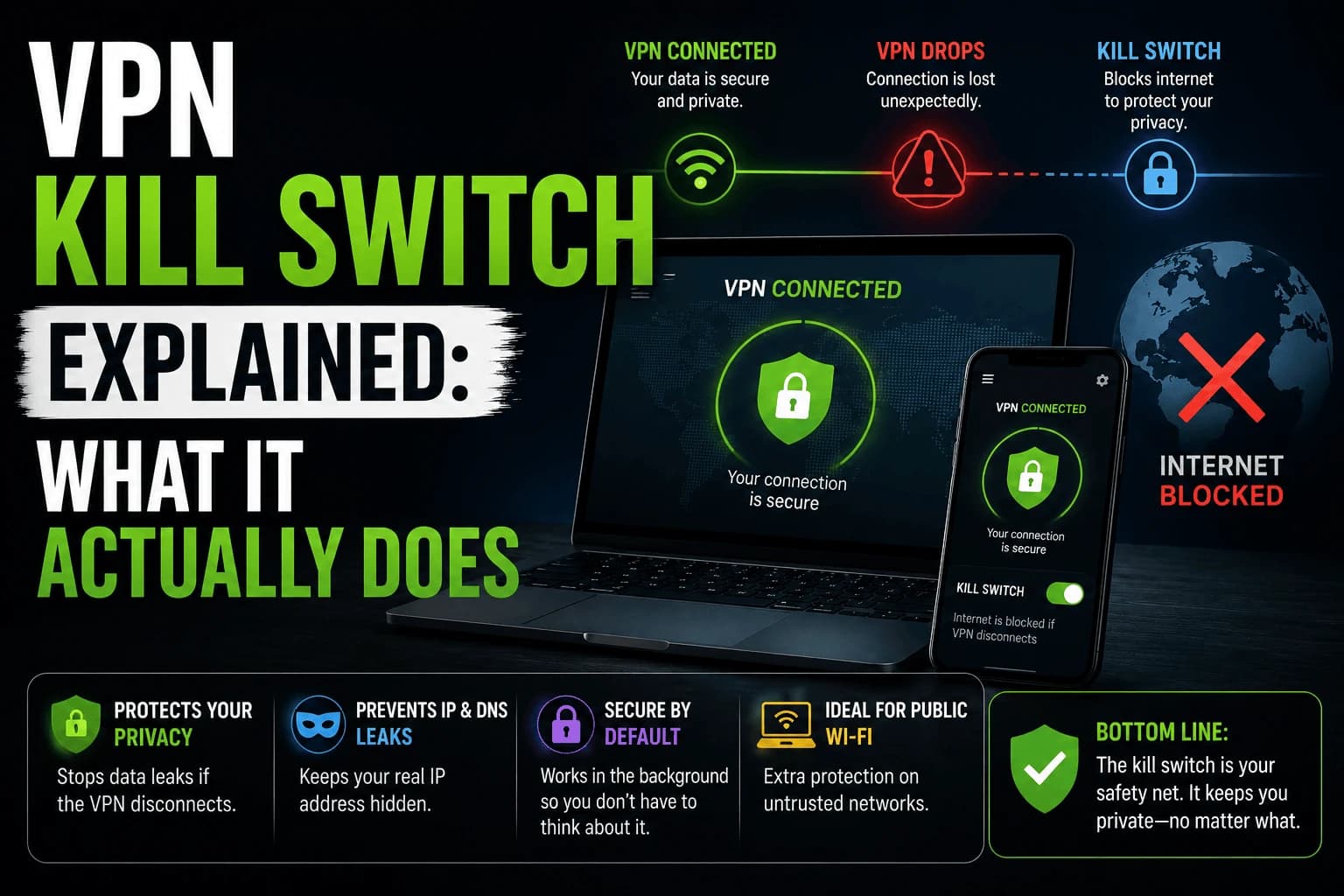
Your Wi-Fi hiccups for two seconds: a neighbor's microwave, a router firmware check, whatever. The VPN tunnel drops. Your device doesn't ask permission before it reconnects through your normal, unprotected internet instead. The show keeps playing. Nothing on screen tells you anything changed. That gap between "the VPN silently failed" and "you notice" is the entire reason a kill switch exists.
Most people trust the toggle. They shouldn't.
Turning on "kill switch" in a settings menu feels like it should be the end of the story. It isn't. The setting only does something the moment your VPN tunnel actually closes without you closing it: a dropped connection, a server restart on the provider's end, your device waking from sleep and reconnecting to Wi-Fi a beat before the VPN app catches up. Most of the time, nothing goes wrong and the toggle sits there doing nothing, which is exactly why people stop thinking about whether it works at all.
What it does, mechanically
Underneath the setting is a small piece of software watching for one specific event: the VPN tunnel closing unexpectedly. When that happens, it doesn't try to reconnect first — it blocks all internet traffic immediately, before anything gets a chance to fall back to your unprotected connection. No background app sneaks a request out. No browser tab quietly loads. The block comes first; the reconnection attempt happens after.
Two different versions, and most people have the wrong one on by default
There are two implementations, and they're not interchangeable. System-wide kill switches cut off the entire device's internet the instant the tunnel drops, nothing gets through, full stop. App-level kill switches only block the specific apps you've selected, leaving everything else on your device free to keep talking to the internet unprotected. Check your VPN app's settings directly; several providers ship app-level as the default because it's less disruptive to your smart home gear, which quietly means your browser or streaming app isn't actually covered unless you added it to the list yourself.
Why a two-second blip matters more during a three-hour movie
A quick search or a page load finishes in under a second. There's barely a window for a drop to happen mid-request. Streaming is different. You're holding an open connection for hours, which is exactly the kind of long exposure where an unlucky network blip eventually finds you. The failure mode isn't more likely per minute; there are just far more minutes for it to occur in.
The five-minute test that actually proves it works
Connect to your VPN. Open a page that shows your current IP address and confirm it shows the VPN's address, not your own. Now physically kill your Wi-Fi or pull the Ethernet cable for a few seconds, then reconnect it. The instant your internet comes back, refresh that IP page again. See your VPN's address the whole time, or a blank page until the VPN itself reconnects? The kill switch is doing its job. See your real IP address for even a moment before the VPN catches up? It isn't, and now you know before it matters, not after.
Kill switch, internet kill switch, network lock — same thing
Providers name this feature inconsistently, which makes it harder to find in a settings menu than it should be. "Kill switch", "internet kill switch", "network lock" and "always-on VPN" all describe the same protection. If you can't find a kill switch setting, look for one of the other names before concluding your provider doesn't offer it.
One genuine distinction hides in that list. "Always-on VPN" on Android is an operating system feature rather than a VPN app feature, found under network settings. It includes a "block connections without VPN" option that acts as a system-level kill switch, and it works even if the VPN app itself crashes, which an app's own kill switch cannot always claim. It's worth enabling alongside your provider's own setting rather than instead of it.
Why a kill switch fails when you need it
A kill switch that's switched on isn't automatically a kill switch that works. Four situations defeat them regularly:
- The VPN app crashes rather than disconnecting. If the process dies outright, an app-level kill switch dies with it and the rules it was enforcing disappear. System-level implementations survive this; app-level ones often don't.
- The device wakes from sleep. Wi-Fi frequently reconnects a moment before the VPN app resumes, opening a brief unprotected window. This is the most common real-world leak and the easiest to miss.
- Split tunneling is also enabled. A kill switch normally only cuts tunneled traffic, so any app you excluded keeps working when the VPN drops. That's correct behaviour, but it isn't what most people expect. Our guide to split tunneling explains how the two interact.
- It's app-level and you never added the apps. Several providers ship app-level as the default with an empty list, which protects nothing until you populate it.
Does it matter for streaming specifically?
It depends on why you're running a VPN in the first place. If it's for privacy on an untrusted network, a leak matters regardless of what you're doing. Our guide to VPNs on public Wi-Fi covers that case.
If you're using a VPN for a stable connection or to avoid throttling, a kill switch is more of a nuisance than a safeguard: a dropped tunnel just stops playback rather than exposing anything sensitive. Worth knowing which situation you're in before turning on a feature that will interrupt your evening.
What it costs you
A working kill switch will occasionally cut your internet at an inconvenient moment. That's the feature functioning correctly, not a malfunction, but it's worth understanding before you enable it on a shared household device where other people will notice the outage and not know why.
The other cost is on constrained hardware. Streaming sticks have limited resources, and a kill switch adds a monitoring process plus firewall rules. On a device already struggling with a full-tunnel VPN, that overhead is real, though rarely enough to matter on its own.
Related reading
- Split tunneling: changes what a kill switch actually covers
- Free vs paid VPNs: kill switches are inconsistent on free tiers
- streaming VPNs
Frequently Asked Questions
Does every VPN have a kill switch?
No. It's common among established paid providers but far from universal, and some only include it on certain platforms (desktop apps, for instance, but not the mobile or TV app). Check the specific app you're using, not just the provider's general feature list.
Will a kill switch disconnect me constantly?
Only if your VPN connection itself is unstable. A kill switch doesn't cause drops — it reacts to drops that were already happening. If you're getting cut off often, the underlying VPN connection is the problem, not the kill switch.
Can I test if my kill switch actually works?
Yes. Connect to the VPN, start a network activity monitor or simply watch a page that shows your IP address, then manually disable your Wi-Fi or unplug your Ethernet cable for a few seconds. If internet access resumes before you reconnect the VPN, the kill switch isn't functioning as advertised.
Does a kill switch slow down my connection?
No, it has no measurable effect on speed. It sits idle doing nothing until a disconnection event happens, so there's no ongoing performance cost to having it enabled.
What is the difference between an internet kill switch and a network lock?
Nothing — providers use different names for the same feature. "Kill switch", "internet kill switch", "network lock" and "always-on VPN" all describe blocking traffic when the tunnel drops. If you cannot find a kill switch setting, look for one of the other names before assuming your provider lacks one.
What is the difference between an app-level and system-wide kill switch?
A system-wide kill switch blocks all internet traffic on the device when the tunnel drops. An app-level one blocks only the apps you selected, leaving everything else connected unprotected. Several providers default to app-level with an empty list, which protects nothing until you add apps to it.
Why did my VPN leak even with the kill switch on?
The most common cause is the device waking from sleep, where Wi-Fi reconnects a moment before the VPN app resumes. Others: the VPN app crashing rather than disconnecting cleanly, which takes an app-level kill switch down with it, or split tunneling being enabled, since excluded apps are not covered by the kill switch at all.
Should I use Android's always-on VPN instead?
It is worth enabling alongside your provider's own setting. Android's always-on VPN with "block connections without VPN" operates at the operating system level, so it still applies if the VPN app itself crashes — something an app-level kill switch cannot guarantee.