Fix an Apple TV Remote (Siri Remote) That Stopped Working
10 min read
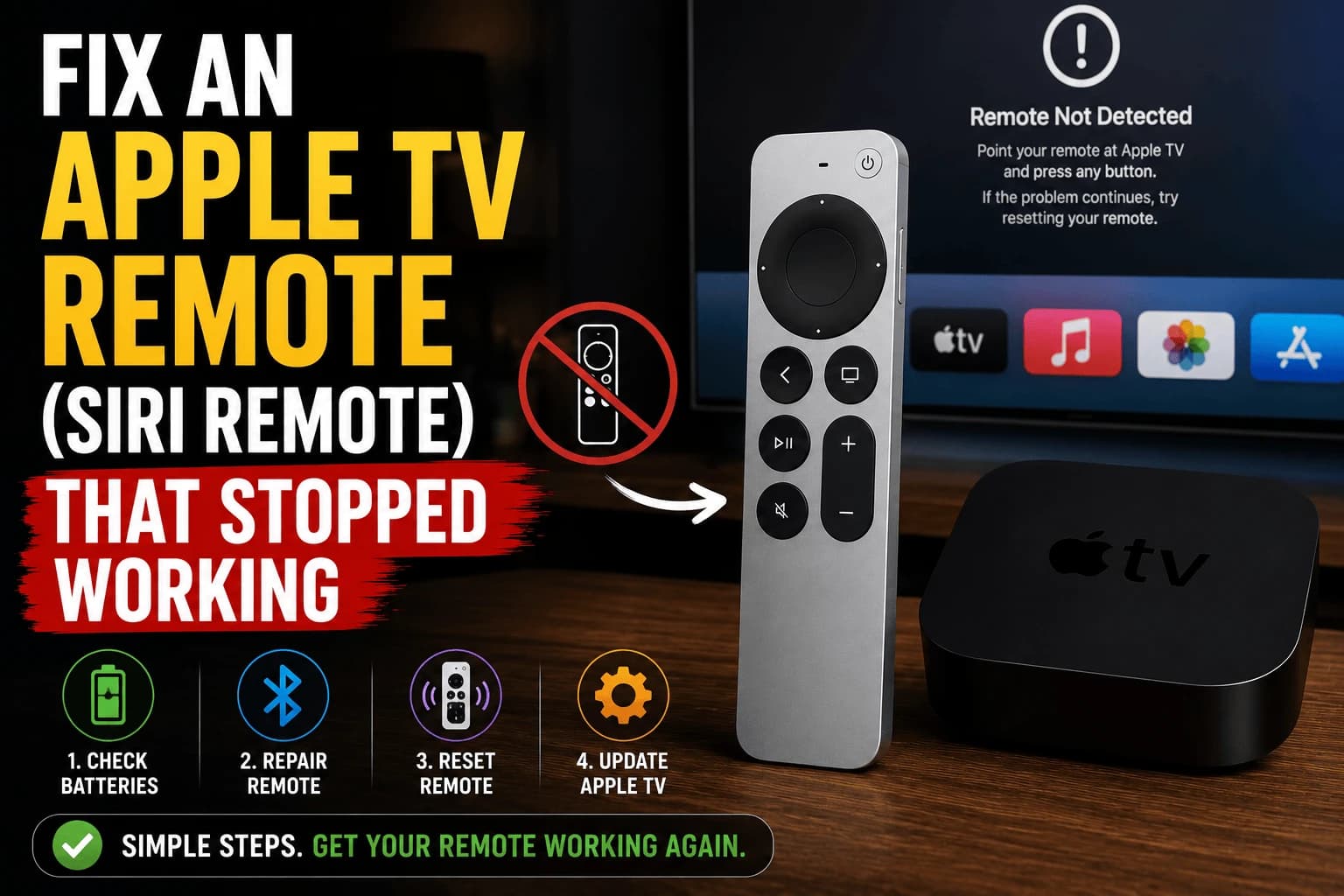
A dead Siri Remote feels like a hardware failure. It almost never is one. Nine times out of ten it's a battery that's quietly given up or a Bluetooth pairing that's gotten confused. Both fixable in minutes, neither requiring a trip to the Apple Store. Work through these before you consider a replacement.
Rule out the battery first
Go to Settings → Remotes and Devices on the Apple TV to check the remote's battery percentage directly. If you can't navigate menus because the remote isn't responding at all, look instead for a small indicator light near the charging port when plugged in. A depleted battery is by far the most common cause of a Siri Remote that seems dead.
Give it real charging time
A fully drained battery won't necessarily respond the instant you plug it in. Let it charge for at least 20 minutes before testing again — this alone resolves a large share of "the remote just stopped working" reports.
Bluetooth range and interference
Newer Siri Remotes connect over Bluetooth rather than requiring direct line of sight, but that doesn't make them immune to distance or interference issues. Other Bluetooth devices nearby, speakers, headphones, other remotes, can occasionally cause connection drops. Moving closer to the Apple TV box and temporarily removing other Bluetooth devices from the room is a quick way to test whether interference is the culprit.
Re-pairing the remote
Hold the remote within a few inches of the Apple TV box and press and hold the TV/Home button and Volume Down button together for about 5 seconds. This triggers a fresh pairing attempt and resolves most connection issues that a simple restart doesn't.
Restart the Apple TV itself
Sometimes the problem is on the Apple TV's side of the Bluetooth connection, not the remote. Go to Settings → System → Restart, or if the remote is too unresponsive to navigate that far, unplug the Apple TV's power cable for 30 seconds and reconnect it.
Full remote reset as a last resort
If nothing above resolves it, disconnect the remote entirely from Settings → Remotes and Devices and pair it again from scratch as if it were brand new. This clears out any corrupted pairing data that a simple re-pair attempt might leave behind.
Don't just sit there while you troubleshoot
You don't have to pause your show while you work through the steps above. Pull up Control Center on any iPhone on the same Wi-Fi network and the Apple TV Remote feature turns your phone into a fully functional replacement, same navigation, same Siri button, no waiting required.
Which remote do you actually have?
The fixes differ by generation, and applying the wrong one wastes time.
The current Siri Remote has a circular clickpad at the top and a power button, and charges over Lightning or USB-C depending on year. The older Siri Remote is a slim black remote with a glass touch surface across the top half: the fragile one people replace most often. Both charge internally.
The original aluminium Apple Remote, shipped with older Apple TV units, is different in a way that matters: it uses a replaceable CR2032 coin cell rather than a rechargeable battery. If yours takes a coin cell, no amount of charging time helps, replace the cell.
The quickest way to tell if you're unsure: if there's no charging port anywhere on the remote, it takes a coin cell.
When only some buttons respond
Partial failure points somewhere different than total failure. If navigation works but volume doesn't, that isn't the remote at all — volume is sent over HDMI-CEC to the TV or receiver, and it's the CEC link that's broken. Check that CEC is enabled on the TV (manufacturers all name it differently. Anynet+, Bravia Sync, SimpLink, Viera Link) and configure volume control under Settings → Remotes and Devices → Volume Control.
If the touch surface responds but clicks don't register, or the reverse, that's genuine hardware wear and no amount of re-pairing fixes it.
When the remote works but the Apple TV ignores it
Occasionally the remote is fine and the Apple TV has stopped responding to input entirely. The box has frozen while still displaying an image. The giveaway is that the phone remote doesn't work either.
Unplug the Apple TV for 30 seconds and reconnect. If it recurs regularly, it usually indicates a storage or software problem on the box rather than anything to do with the remote.
If you need a replacement
Apple sells the Siri Remote separately, and it pairs with any recent Apple TV. Third-party remotes exist and are considerably cheaper, though they generally lack the Siri button and don't always handle volume properly.
Worth knowing before you buy: the iPhone remote in Control Center is a complete replacement, not a stopgap. If losing the physical remote is a recurring problem in your household, it may be all you need.
Related troubleshooting
- "No signal" and HDMI problems: the same CEC link that carries volume control
- Fire TV Stick vs Roku vs Apple TV: how the remotes compare across platforms
Frequently Asked Questions
Why does my Apple TV remote work sometimes but not consistently?
Intermittent response is often a low battery starting to fail, or Bluetooth interference from other nearby devices. Check the charge level first, since a partially depleted battery frequently causes exactly this kind of inconsistent behavior.
How do I know if my Apple TV remote is charging?
Plug it in with a Lightning or USB-C cable (depending on your remote generation) and look for a small amber or white indicator light near the charging port, or check the battery percentage in Settings on the Apple TV.
Can I use my iPhone as a replacement if the physical remote isn't working?
Yes. The Apple TV Remote feature in iOS Control Center lets an iPhone control the Apple TV over the same network, which works as a reliable temporary substitute while troubleshooting the physical remote.
Does re-pairing the remote delete anything?
No, re-pairing only affects the Bluetooth connection between the remote and the Apple TV box. It doesn't affect your installed apps, accounts, or any content or settings on the device itself.
Why does my Apple TV remote control navigation but not volume?
Volume is not sent over Bluetooth like navigation — it travels over HDMI-CEC to your TV or receiver, so a volume-only failure means the CEC link is broken rather than the remote. Enable CEC on the TV (named Anynet+, Bravia Sync, SimpLink or Viera Link depending on brand) and check Settings → Remotes and Devices → Volume Control.
My Apple TV remote has no charging port — how do I fix it?
You have the original aluminium Apple Remote, which uses a replaceable CR2032 coin cell rather than a rechargeable battery. Charging advice does not apply; replace the cell. If a remote has no charging port anywhere on it, it takes a coin cell.
What if the remote works but the Apple TV still does not respond?
The box has likely frozen while still displaying an image. The giveaway is that the iPhone remote in Control Center does not work either. Unplug the Apple TV for 30 seconds and reconnect it. Frequent recurrence usually points at a storage or software problem on the box rather than the remote.